Responsive Design Patterns
Master responsive design — media queries, mobile-first strategy, fluid typography with clamp(), responsive images (srcset, picture, lazy loading), and container queries with interactive demos.
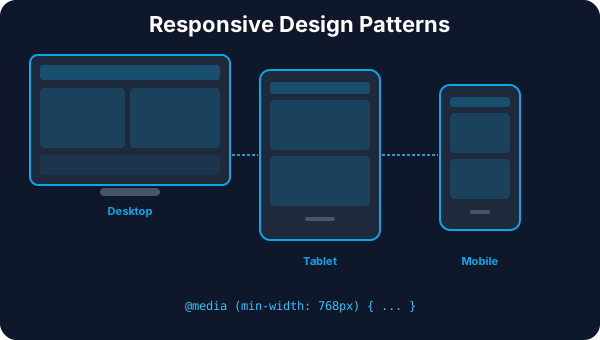
Media Queries — The Breakpoint System
Media queries are the foundation of responsive design. They let you apply CSS conditionally based on viewport width, user preferences, device capabilities, and more. Mobile-first with min-width is the standard approach.
Media Queries — The Breakpoint System
Media queries apply styles conditionally based on viewport width, user preferences, or device capabilities.
@media (max-width: 639px)@media (min-width: 640px)@media (min-width: 1024px)@media (min-width: 1280px)/* Mobile-first: base styles are mobile */
.container { padding: 16px; }
.grid { display: flex; flex-direction: column; }
/* Scale UP with min-width */
@media (min-width: 640px) {
.container { padding: 24px; }
.grid { flex-direction: row; }
}
@media (min-width: 1024px) {
.container { padding: 32px; max-width: 1200px; }
}Mobile-first wins because: smaller CSS payload on mobile (no overrides needed), forces you to prioritize content, and progressive enhancement is more robust than graceful degradation.
Beyond Width — Media Features
@media (min-width: 768px)Tablet and up
Width@media (max-width: 639px)Mobile only
Width@media (prefers-color-scheme: dark)Dark mode preference
Preference@media (prefers-reduced-motion: reduce)Reduce animations
Preference@media (hover: hover)Device has hover capability
Capability@media (orientation: portrait)Portrait orientation
Orientation@media printPrint stylesheets
Media@media (min-resolution: 2dppx)Retina/HiDPI screens
Resolution🔑 Key Takeaway: Media queries aren't just for width. Use prefers-color-scheme for dark mode, prefers-reduced-motion for accessibility, and hover: hover to detect mouse vs touch. Always go mobile-first with min-width.
Fluid Typography & Sizing
Instead of jumping between fixed sizes at breakpoints, fluid typography scales smoothly with the viewport. The clamp() function is the modern solution — it sets a minimum, preferred, and maximum value in a single declaration.
Fluid Typography & Sizing
Make text and spacing scale smoothly between breakpoints instead of jumping at fixed sizes.
Sets a min, preferred, and max. The font scales with viewport but never goes below 1rem or above 2rem.
Responsive Heading
This text scales smoothly between min and max sizes based on the viewport width.
.element {
  font-size: clamp(1rem, 2.5vw, 2rem);
}
Production Fluid Type Scale
| Element | Min | Max | CSS |
|---|---|---|---|
| h1 | 2rem | 3.5rem | clamp(2rem, 5vw, 3.5rem) |
| h2 | 1.5rem | 2.5rem | clamp(1.5rem, 4vw, 2.5rem) |
| h3 | 1.25rem | 1.75rem | clamp(1.25rem, 3vw, 1.75rem) |
| body | 1rem | 1.125rem | clamp(1rem, 1.5vw, 1.125rem) |
| small | 0.875rem | 0.875rem | 0.875rem |
🔑 Key Takeaway: clamp(min, preferred, max) is the best tool for fluid sizing. It scales smoothly between breakpoints with hard min/max guardrails — replacing the need for multiple font-size media queries.
Responsive Images
Images are often the heaviest assets on a page. Serving the right size, format, and resolution for each device is critical for performance. Use srcset for resolution switching, <picture> for art direction, and loading="lazy" for deferring offscreen images.
Responsive Images
Serve the right image size, format, and crop for every device. Critical for performance and visual quality.
The browser picks the best image based on viewport width and pixel density. No JavaScript needed.
<img
  src="photo-800.jpg"
  srcset="
    photo-400.jpg   400w,
    photo-800.jpg   800w,
    photo-1200.jpg 1200w"
  sizes="
    (max-width: 640px) 100vw,
    (max-width: 1024px) 50vw,
    33vw"
  alt="Responsive photo"
/>
object-fit — Interactive Demo
150px height
200px height
280px height
img { width: 100%; height: 200px; object-fit: cover; }🔑 Key Takeaway: Use srcset for resolution switching, <picture> for art direction, object-fit: cover for consistent aspect ratios, and loading="lazy" for performance. Modern image formats (AVIF, WebP) save 30-50% bandwidth.
Container Queries — The Future
Container queries are the biggest evolution in CSS layout since Flexbox. They let components style themselves based on their parent container's size — not the viewport. This makes truly reusable, context-aware components.
Container Queries
Style components based on their parent container size, not the viewport. The biggest CSS evolution since Flexbox.
📺 Media Queries
- • Based on viewport width
- • Global — same breakpoint everywhere
- • A sidebar card and a main card break at the same viewport width even if they have different widths
📦 Container Queries
- • Based on parent container width
- • Local — each component adapts independently
- • A card in a narrow sidebar uses compact layout while the same card in main content uses wide layout
Container: 600px
Card Title
This card uses a horizontal layout when its container is wide enough (≥500px).
/* 1. Define a containment context */
.card-container {
  container-type: inline-size;
  container-name: card;
}

/* 2. Query the container, not the viewport */
@container card (min-width: 500px) {
  .card {
    display: flex;
    flex-direction: row;
    gap: 1rem;
  }
}

@container card (max-width: 499px) {
  .card {
    display: flex;
    flex-direction: column;
    text-align: center;
  }
}
Container Query Units
cqw1% of container width
font-size: 5cqw;cqh1% of container height
height: 50cqh;cqi1% of container inline size
font-size: 3cqi;🔑 Key Takeaway: Container queries let components adapt to their own space, not the viewport. Set container-type: inline-size on the parent, then use @container rules. This makes truly reusable components that work in any layout context.