Understanding DNS & the TCP/IP Model
The complete journey of a network request — from typing a URL to rendering pixels. DNS resolution, TCP/IP layers, three-way handshake, packet encapsulation, real-time traffic visualization, and a network commands playground with interactive diagrams.
The Journey of a URL
Every time you type a URL and press Enter, an extraordinary sequence of events unfolds in milliseconds. Your keystroke triggers a chain reaction that spans your operating system kernel, your home router, your ISP's network, undersea fiber-optic cables stretching thousands of kilometers, load balancers in massive data centers, application servers, databases — and then the entire journey reverses, carrying the response back through every link in the chain, before your browser's rendering engine paints the first pixel on your screen.
Most developers use the internet thousands of times a day without truly understanding what's happening beneath the surface. They know "DNS resolves domain names" but can't explain why it sometimes takes 200ms and sometimes 2ms. They know "TCP is reliable" but don't understand how sequence numbers and acknowledgments actually guarantee delivery. They know "HTTPS is secure" but can't describe how the browser verifies a server's identity.
This tutorial will change that. We're going to trace every single step— from the keypress to the painted pixel — with real packet captures, real timing data, and real commands you can run right now to observe each stage on your own machine. By the end, you won't just understand networking — you'll be able to debug it.
You type a URL
~0msThe moment you type "https://www.google.com" into your address bar and press Enter, the browser doesn't just "go to a website." It begins a carefully orchestrated sequence of operations. First, the browser's URL parser breaks the string into its constituent parts: the scheme (https), the authority (www.google.com), the port (implied 443 for HTTPS), and the path (/). This parsing follows RFC 3986 — the formal specification for URI syntax.
Deep Dive — What's Really Happening
Before anything touches the network, the browser checks multiple caches. First, it checks the browser's in-memory HTTP cache — has this exact URL been fetched recently, and is the cached response still fresh (based on Cache-Control headers)? If so, the browser can skip the entire network round-trip. If the cache entry is stale, the browser may send a conditional request (If-Modified-Since or If-None-Match) to validate the cache rather than downloading everything again. Chrome alone maintains separate caches for HTTP responses, DNS records, TLS sessions, and even preconnected TCP sockets.
When a user complains "the site is slow," the problem could be in anyof these steps. Understanding the timing breakdown helps you pinpoint the bottleneck. Here's what a real request to google.com looks like, measured with curl:
$ curl -w "\nDNS: %{time_namelookup}s\nTCP: %{time_connect}s\nTLS: %{time_appconnect}s\nFirst byte: %{time_starttransfer}s\nTotal: %{time_total}s\n" -o /dev/null -s https://www.google.com
DNS: 0.004s ← 4ms (cached by OS)
TCP: 0.015s ← 11ms for handshake (15 - 4)
TLS: 0.035s ← 20ms for TLS 1.3 (35 - 15)
First byte: 0.082s ← 47ms server processing (82 - 35)
Total: 0.120s ← 38ms to download body (120 - 82)
In this example, server processing is the biggest chunk (39%). For a cold DNS cache, DNS alone can take 50-100ms — try comparing dig @8.8.8.8 google.com vs an uncached domain.
Why Understanding This Matters
Every performance optimization technique you've ever heard of maps directly to one of these seven steps. CDNs reduce the physical distance (Steps 2–5). DNS prefetching eliminates Step 1 for subsequent navigations. HTTP/2 multiplexing reduces the cost of Step 4 for additional resources. Server-side rendering moves work from Step 7 to Step 5. Code splitting reduces the amount of JavaScript in Step 6. Brotli compression shrinks Step 5. Connection pooling eliminates Steps 2–3 for keep-alive requests.
But before we can optimize, we need to understand the architecture that makes all of this possible. The internet isn't a single system — it's built in layers, each with a specific job, each completely independent of the others. This layered design is called the TCP/IP model, and understanding it is the master key that unlocks everything else in networking. Let's dive in.
The TCP/IP Model: Architecture of the Internet
In the previous section, we saw seven steps from URL to pixels. But how do all these steps actually work together? The answer lies in the TCP/IP model— a four-layer architecture that is the blueprint of every network communication on Earth. It's not just a theoretical framework; it's literally implemented in your operating system's kernel right now, processing every packet that enters or leaves your machine.
The genius of the layered model is separation of concerns. Each layer has one job and does it independently. The Application layer (HTTP) doesn't care whether you're on Wi-Fi or Ethernet. The Transport layer (TCP) doesn't care whether the IP address is IPv4 or IPv6. The Internet layer (IP) doesn't care whether the physical medium is copper, fiber, or radio waves. This modularity is why you can switch from Wi-Fi to cellular data mid-download without dropping the connection (at least with QUIC/HTTP3), and why the same HTTP request works identically on a laptop, a phone, and an IoT sensor.
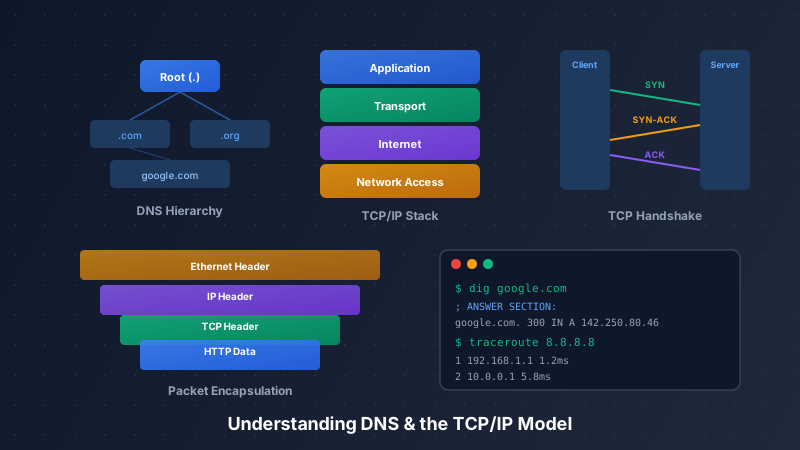
Data flows downthe stack on the sender's side — each layer wrapping the data with its own header (like putting a letter in an envelope, then putting that envelope in a shipping box). On the receiver's side, data flows up the stack — each layer stripping its header and passing the payload upward. This wrapping process is called encapsulation, and understanding it is the single most important concept in networking.
Application Layer
This is where humans interact with the network. The Application layer defines the rules for how applications communicate — the format of messages, the sequence of exchanges, and the semantics of the data. When your browser constructs an HTTP request, it's creating an Application-layer message. When your email client sends a message via SMTP, that's also Application layer. When your code calls fetch() or axios.get(), you're operating at this layer.
Real-World Example
Consider what happens when you visit a website. Your browser constructs an HTTP/2 request with headers like Host: www.google.com, Accept: text/html, and Cookie: session=abc123. This message is pure application data — it knows nothing about TCP ports, IP addresses, or Ethernet frames. It simply says "I want the HTML document at this path." The beauty of layering is that this same HTTP message works identically whether it travels over Wi-Fi, Ethernet, 5G cellular, or a satellite link — the Application layer doesn't care how it gets there.
Deep Dive — Under the Hood
Each Application-layer protocol has its own message format. HTTP uses text-based headers (or binary frames in HTTP/2). DNS uses a compact binary format with a 12-byte header. SMTP uses text commands like HELO, MAIL FROM, RCPT TO. SSH uses encrypted binary packets. What they all share is that they define the complete conversation between applications — from initial greeting to data exchange to graceful shutdown. The Application layer in TCP/IP also absorbs what the OSI model calls the Presentation layer (data encoding, compression, encryption like TLS) and the Session layer (managing ongoing connections, like HTTP keep-alive or WebSocket sessions).
Protocols
Devices at this layer
Header Fields Added at This Layer
What the Header Actually Looks Like
HTTP/2 Request (Application layer message):
:method: GET
:path: /search?q=networking
:authority: www.google.com
:scheme: https
accept: text/html
cookie: NID=511=abc123...
user-agent: Chrome/126.0

DNS Query (also Application layer):
Header:  ID=0x1234, QR=0 (query), Opcode=0 (standard)
Question: www.google.com  IN  A
Verify It Yourself
See HTTP headers and TLS negotiation at the Application layer$ curl -v https://google.com 2>&1 | head -25
* Connected to google.com (142.250.80.46) port 443
* SSL connection using TLSv1.3 / TLS_AES_256_GCM_SHA384
> GET / HTTP/2
> Host: google.com
> Accept: */*
< HTTP/2 301
< location: https://www.google.com/
How Data Transforms at Each Layer — A Concrete Example
Let's trace exactly what happens to your HTTP request as it travels down the TCP/IP stack. Imagine you're sending GET /to google.com. Here's the transformation at each layer:
Application Layer
Your browser creates the HTTP message: "GET / HTTP/2, Host: google.com, Accept: text/html..." — about 200-800 bytes of application data.
Transport Layer
The OS kernel's TCP stack wraps the HTTP data in a TCP segment. It adds source port (52413), destination port (443), sequence number (tracking this byte stream), acknowledgment number, window size, and a checksum. This adds 20-60 bytes of TCP header.
Internet Layer
The IP layer wraps the TCP segment in an IP packet. It adds source IP (192.168.1.42), destination IP (142.250.80.46), TTL (64), protocol field (6 = TCP), and a header checksum. This adds 20 bytes of IP header.
Network Access Layer
The Ethernet driver wraps the IP packet in an Ethernet frame. It adds source MAC (your NIC), destination MAC (your router — NOT Google's MAC!), EtherType (0x0800 = IPv4), and a 4-byte CRC checksum at the end. The NIC converts the frame into electrical signals on the wire.
You'll often hear about the OSI modelwith 7 layers in interviews and textbooks. It's a theoretical reference model created by ISO in 1984. The TCP/IP model is what the internet actually uses — it was developed pragmatically by the engineers who built ARPANET. The key difference: OSI splits the top into three layers — Application (data), Presentation (encoding/encryption), and Session (connection management) — while TCP/IP merges all three into a single Application layer. Similarly, OSI has separate Data Link and Physical layers, while TCP/IP combines them into Network Access. In job interviews, know both models, but in practice, think in TCP/IP.
The Key Takeaway
Every network problem you'll ever encounter maps to a specific layer. Can't reach any website? That's probably Layer 1 (cable unplugged, Wi-Fi down) or Layer 2 (wrong VLAN, MAC filtering). Can ping an IP but not a hostname? Layer 7 (DNS issue). Can reach the server but the app doesn't respond? Could be Layer 4 (firewall blocking the port) or Layer 7 (application crash). Knowing which layer to investigate is the first step to solving any network issue.
Now that we understand the layered architecture, let's zoom into the first thing that happens when you type a URL — DNS resolution. This is Layer 7 (Application) talking to Layer 4 (Transport via UDP) to send a query that traverses Layer 3 (Internet) across the globe to find the IP address of the server you want to reach. It's a perfect example of all four layers working together.
DNS: The Internet's Phone Book
In the TCP/IP model, we learned that every layer has a job. DNS operates at the Application layer, but its impact is felt across the entire stack — because nothing else can happen until DNS resolves. No TCP connection, no TLS handshake, no HTTP request. If DNS is slow, everything is slow. If DNS is down, the internet is effectively down, even though all the servers are running fine.
DNS is the most critical distributed system on the internet. It's a globally distributed, hierarchical database with trillions of queries per day, yet most lookups complete in under 5 milliseconds. It achieves this through aggressive caching, geographic distribution via anycast routing, and a clever hierarchical delegation model that distributes the load across thousands of independent servers worldwide.
Let's trace exactly what happens when your browser needs to translatewww.google.com into 142.250.80.46. Understanding this process will explain why websites sometimes take seconds to load (DNS timeout), why DNS changes don't take effect immediately (TTL caching), why switching to Cloudflare DNS (1.1.1.1) might speed up your browsing, and how DNS can be exploited for censorship, surveillance, and attacks.
DNS is structured as an inverted tree. At the top is the root zone("."). Below it are Top-Level Domains (.com, .org, .io). Below those are second-level domains (google.com). Each level delegates authority downward — the root delegates to TLDs, TLDs delegate to domains, and domains can create unlimited subdomains.
Your browser calls getaddrinfo("www.google.com"). Before touching the network, it checks its own internal DNS cache (Chrome: chrome://net-internals/#dns). If the cached entry's TTL hasn't expired, the browser uses it immediately — zero network cost. If it misses, the call goes to the OS stub resolver, which checks /etc/hosts (useful for dev: "127.0.0.1 myapp.local") and its own cache.
The digcommand is the professional tool for DNS debugging. Here's a real dig +trace output showing every step of the resolution we just described:
$ dig +trace www.google.com
# Step 1: Query root servers
. 518400 IN NS a.root-servers.net.
. 518400 IN NS b.root-servers.net.
; (13 root servers listed, TTL = 518400s = 6 days)
# Step 2: Root refers us to .com TLD servers
com. 172800 IN NS a.gtld-servers.net.
com. 172800 IN NS b.gtld-servers.net.
; (13 .com TLD servers, TTL = 172800s = 2 days)
# Step 3: .com TLD refers us to Google's nameservers
google.com. 172800 IN NS ns1.google.com.
google.com. 172800 IN NS ns2.google.com.
; Glue: ns1.google.com. 172800 IN A 216.239.32.10
# Step 4: Google's authoritative NS — the final answer
www.google.com. 300 IN A 142.250.80.46
; ↑ TTL=300s (5 min) — cached for 5 min at each layer
;; Query time: 47 msec (cold) | cached: <2ms
DNS isn't just about IP addresses. The DNS database stores many types of records, each serving a different purpose — from email routing to domain verification to reverse lookups.
The most common record. Multiple A records enable round-robin load balancing.
IPv6 equivalent of A. Browsers try A + AAAA simultaneously ("Happy Eyeballs" algorithm).
Creates an alias. Resolver restarts lookup for the target. Cannot coexist with other records at same name.
Directs email delivery. Lower priority number = preferred. Fallback to higher numbers if primary is down.
Delegates authority. At TLD level, tells the internet which servers are authoritative for your domain.
Used for SPF (email sender auth), DKIM (email signing), DMARC (email policy), domain verification.
One per zone. Contains primary NS, admin email, serial number, and refresh/retry/expire timers.
Maps IPs back to hostnames. Used for email spam checking and logging. IP written in reverse.
DNS is aggressively cached at every layer. When you change a DNS record, the old value may persist for hours (or even days) in caches around the world. This is controlled by the TTL (Time To Live) value — the number of seconds a record can be cached.
Chrome, Firefox, Safari each maintain separate DNS caches. Chrome limits to 1000 entries and enforces a 60s minimum TTL. Inspect at chrome://net-internals/#dns. Clear by restarting the browser or flushing there.
macOS uses mDNSResponder, Linux uses systemd-resolved. Flush: macOS "sudo dscacheutil -flushcache && sudo killall -HUP mDNSResponder", Linux "sudo systemd-resolve --flush-caches", Windows "ipconfig /flushdns". Serves ALL apps.
Most routers run dnsmasq or similar. If your phone resolved google.com, your laptop may get the cached answer from the router. Restarting the router clears this cache. Some routers also filter DNS for parental controls.
The biggest cache in the chain. Google 8.8.8.8 / Cloudflare 1.1.1.1 serve millions of users. For popular domains like google.com, the answer is almost always cached — another user queried it recently. Cache hit rate for top domains: ~100%.
TTL Strategy for Different Scenarios
TTL=60 ← CDN / Cloudflare (fast failover, higher query load)
TTL=300 ← Google (balance between caching and flexibility)
TTL=3600 ← Static servers (stable IPs, max cache benefit)
TTL=86400 ← NS records (domain delegation, very stable)
# Pro tip: Before a server migration, lower TTL to 60s
# 24-48 hours BEFORE the move so old entries expire quickly.
DNS Security — The Dark Side
Traditional DNS is sent in plaintext over UDP — meaning anyone on the network path (your ISP, a Wi-Fi eavesdropper, a compromised router) can see every domain you visit and even tamper with responses. This has led to several security enhancements and attack vectors:
DNS Cache Poisoning
An attacker injects fake DNS responses into a resolver's cache, redirecting users to malicious servers. The 2008 Kaminsky attack showed this could be done in seconds. Defense: DNSSEC adds cryptographic signatures to verify answers came from the genuine authoritative server.
DNS over HTTPS (DoH)
Encrypts DNS queries inside HTTPS, preventing ISPs from seeing which domains you resolve. Supported by Chrome, Firefox, iOS. Configure your browser to use Cloudflare (https://cloudflare-dns.com/dns-query) or Google (https://dns.google/dns-query).
DNS Hijacking
Some ISPs and governments intercept DNS queries to redirect users — for censorship, ad injection, or surveillance. Signs: NXDOMAIN for valid domains, unexpected redirects. Defense: use encrypted DNS (DoH/DoT) with a trusted resolver like 1.1.1.1 or 8.8.8.8.
DNS Tunneling
Since DNS traffic is rarely blocked, attackers encode data inside DNS queries to exfiltrate information or create covert channels. Data hides in the subdomain field: "encoded-data.evil.com". Detection: monitor for unusually long domain names or high query volumes.
Common DNS Failures and How to Debug Them
When a website "doesn't load," DNS is often the first suspect. Here are the most common failures, what they mean, and exactly how to diagnose them:
NXDOMAIN
The domain genuinely doesn't exist in DNS — a typo (gooogle.com), an expired registration, or a domain that was never registered. Some ISPs hijack NXDOMAIN and redirect to their own search pages.
Fix: Check spelling. Verify registration. Use dig @8.8.8.8 to bypass ISP hijacking.
SERVFAIL
The recursive resolver tried but failed. Common cause: DNSSEC validation failure (cryptographic signature mismatch). Also happens when authoritative nameservers are misconfigured or unreachable.
Fix: Use dig +cd to check if DNSSEC is the issue. Try a different resolver. Contact domain admin.
Timeout
No DNS response received. Could be: firewall blocking UDP port 53, resolver is down, or network connectivity issue. dig defaults to a 5-second timeout.
Fix: Try dig @1.1.1.1. Check if port 53 is blocked. Test basic connectivity with ping.
Stale Cache
DNS records were changed but the old IP is cached somewhere. Traffic hits the old server. Worst case: the old IP belongs to someone else now — a security risk.
Fix: Flush local cache. Wait for TTL to expire. Pre-migration: lower TTL 24-48 hours before.
From DNS to TCP — The Next Step
DNS has done its job — we now know that www.google.com lives at 142.250.80.46. But having an address is like having a phone number — it's useless until you actually dial it and establish a connection. That's exactly what happens next: our browser needs to create a reliable, ordered communication channelto the server using TCP's famous three-way handshake. Before a single byte of your web page is sent, the client and server must first agree on initial sequence numbers, window sizes, and supported options. Let's see exactly how that handshake works.
TCP: Building a Reliable Channel
DNS gave us the IP address 142.250.80.46. Now the browser needs to establish a reliable, ordered communication channelto that address. This is TCP's job. IP can deliver packets, but it makes no promises — packets can arrive out of order, get duplicated, or vanish entirely. TCP solves all of this by numbering every byte, acknowledging receipt, and retransmitting anything that gets lost.
But reliability has a cost: before any data flows, TCP must first perform the famous three-way handshake. This adds one full round-trip time (RTT) of latency — about 12ms to Google, but 150ms+ to a server on another continent. This is why connection reuse (HTTP keep-alive, connection pooling) is so critical for performance, and why protocols like QUIC (HTTP/3) were invented to eliminate this handshake cost for repeat visitors.
The server process (e.g., nginx) has already called socket(), bind(port 443), and listen() — putting the socket into the LISTEN state. The kernel maintains a "SYN queue" (incomplete connections) and an "accept queue" (completed handshakes waiting for accept()). The backlog parameter in listen() controls the accept queue size — if it fills up, new SYN packets are silently dropped. On a busy server, tuning net.core.somaxconn and net.ipv4.tcp_max_syn_backlog is critical.
Server-side syscalls:
  fd = socket(AF_INET, SOCK_STREAM, 0)
  bind(fd, {addr: 0.0.0.0, port: 443})
  listen(fd, backlog=128)
  // Kernel now accepts SYN packets on port 443

Verify:  ss -lntp | grep 443
Output: LISTEN 0 128 *:443 *:* users:(("nginx",pid=1234))Synchronize — initiates a connection. Consumes 1 sequence number. Contains TCP options (MSS, WScale, SACK). Only set in the first two packets of the handshake.
Acknowledge — confirms received data. Set on virtually every packet after the initial SYN. The Ack Number field tells the sender "I've received everything up to this byte."
Finish — initiates graceful close. Like SYN, consumes 1 sequence number. Tells the other side "I have no more data to send" but can still receive.
Reset — abruptly terminates connection. Sent when a packet arrives for a non-existent connection, or when an application crashes. No ACK expected — connection is immediately dead.
Push — deliver data to application immediately. Without PSH, TCP may buffer data. With PSH, the kernel passes it to the application ASAP. Common on interactive protocols like SSH.
Urgent — out-of-band high-priority data. The Urgent Pointer field indicates where urgent data ends. Rarely used in modern protocols. Telnet used it for Ctrl+C interrupt signals.
Flow Control & Congestion Control — TCP's Speed Governor
TCP doesn't blast data as fast as possible — that would overwhelm either the receiver or the network. It uses two independent mechanisms: Flow Control is receiver-driven — the receiver advertises how much buffer space it has via the Window Size field in every ACK. If the receiver is slow (e.g., a mobile app processing data), it shrinks the window and the sender slows down. Congestion Control is sender-driven — the sender probes the network capacity by gradually increasing its sending rate until it detects packet loss, then backs off. The actual sending rate is the minimumof the receiver's window and the congestion window.
This is why the first page load is always slower than subsequent ones — TCP's slow startalgorithm means new connections can only send ~14KB in the first RTT. Google's research showed that most web pages' initial HTML fits within this 14KB window, which is why optimizing your HTML to be under 14KB is a well-known performance tip.
TCP starts with an initial congestion window (IW) of ~10 segments × 1460 bytes MSS = 14,600 bytes. This was increased from 1-4 segments in the early days to 10 segments (RFC 6928, 2013) based on Google's research showing it significantly improved page load times. Despite the name "slow start," the growth is actually exponential.
Observe TCP windows in real time
$ ss -ti dst google.com
cubic wscale:7,7 rto:204 rtt:12.5/1.2 ato:40 mss:1460
cwnd:10 ssthresh:65535 bytes_sent:1234 bytes_acked:1234
# cwnd=10 → congestion window = 10 segments (14,600 bytes)
# rtt=12.5ms → round-trip to Google
# cubic → congestion control algorithm (default on Linux/macOS)
# wscale:7,7 → window scale factor 2^7=128 (max window: 8MB)
| Feature | TCP | UDP |
|---|---|---|
| Connection | Connection-oriented (3-way handshake) | Connectionless (no setup) |
| Reliability | Guaranteed delivery, ordering, no duplicates | Best-effort: no guarantees at all |
| Speed | Slower (handshake + ACK overhead) | Faster (no handshake, 8-byte header) |
| Header Size | 20–60 bytes | 8 bytes only |
| Flow Control | Yes — receiver window + congestion window | No — application must handle |
| Ordering | Strict byte-stream ordering via seq numbers | No ordering — packets may arrive in any order |
| Error Recovery | Retransmits lost segments automatically | Lost packets are gone forever |
| Use Cases | HTTP/HTTPS, SSH, SMTP, FTP, databases | DNS, video/audio streaming, gaming, VoIP, QUIC |
| When to Choose | Data integrity matters (web, email, files) | Speed/latency matters more than perfection |
Closing a TCP connection is more complex than opening one because each direction of the connection must be closed independently (half-close). Either side can initiate the close. After the final ACK, the initiator enters TIME_WAIT for 2×MSL (Maximum Segment Lifetime, typically 60 seconds on Linux). This ensures that any delayed packets from this connection expire before the port combination can be reused — preventing a new connection from receiving stale data from the old one.
$ netstat -an | grep TIME_WAIT | wc -l
42
# High TIME_WAIT count = many short-lived connections
# Common with HTTP/1.0 (no keep-alive) or misconfigured connection pools
# Fix: enable HTTP keep-alive, use connection pooling, or tune
# net.ipv4.tcp_tw_reuse=1 (Linux) to allow reuse of TIME_WAIT sockets
TCP Retransmission — What Happens When Packets Get Lost
When a TCP segment is lost, the sender detects it in one of two ways: (1) Fast Retransmit — the receiver sends duplicate ACKs for the last good segment; after 3 duplicate ACKs, the sender retransmits immediately without waiting. (2) Retransmission Timeout (RTO)— if no ACK arrives within the timeout period, the sender assumes the segment was lost. The RTO is calculated dynamically from measured RTT samples using Jacobson's algorithm: RTO = SRTT + 4 × RTTVAR. For a connection to Google with 12ms RTT, the initial RTO might be ~200ms. After each timeout, the RTO doubles (exponential backoff) up to a maximum of 120 seconds.
Real retransmission in action (tcpdump)
$ sudo tcpdump -i en0 -n tcp and host google.com
14:23:01.001 192.168.1.42.52413 > 142.250.80.46.443: Flags [P.], seq 1001:1501
14:23:01.013 142.250.80.46.443 > 192.168.1.42.52413: Flags [.], ack 1501
14:23:01.014 192.168.1.42.52413 > 142.250.80.46.443: Flags [P.], seq 1501:2001
... packet lost! No ACK received ...
14:23:01.218 192.168.1.42.52413 > 142.250.80.46.443: Flags [P.], seq 1501:2001 [retransmission]
14:23:01.230 142.250.80.46.443 > 192.168.1.42.52413: Flags [.], ack 2001
# ↑ RTO fired after ~204ms — segment retransmitted, then ACKed normally
From TCP to the Wire — Data Encapsulation
Now that we understand how TCP builds a reliable channel with handshakes, sequence numbers, acknowledgments, and congestion control, let's see how data is actually prepared for transmission. Each layer of the TCP/IP stack wraps the data in its own envelope — a process called encapsulation. Understanding this reveals why a 1-byte HTTP payload turns into a 54+ byte packet on the wire, and why MTU (Maximum Transmission Unit) settings can make or break your network performance.
Packets in Motion: Encapsulation & Decapsulation
TCP has established a reliable channel. Now when you send an HTTP request, it doesn't fly across the internet as a single blob — it gets wrapped in layers of headers as it passes down through each layer of the TCP/IP stack. Think of it like Russian nesting dolls: your HTTP message gets wrapped in a TCP header, then an IP header, then an Ethernet frame. Each layer adds its own addressing and control information. This is encapsulation.
This layered design is why the internet works at all. Each layer only reads its own header and doesn't care about what's inside the payload. Routers only look at IP headers to decide where to forward packets. Switches only look at Ethernet MACs to decide which port to send frames out. Your web server only sees HTTP data. This separation of concerns means you can swap out any layer without affecting the others — Wi-Fi or Ethernet at the bottom, IPv4 or IPv6 in the middle, HTTP or SMTP at the top.
Adds: Method, Host, Content-Type, cookies, auth tokens
The Overhead Tax — Why Small Packets Are Wasteful
Every packet pays a "header tax" — fixed-size headers that carry addressing and control information regardless of payload size. For large payloads (1460 bytes), the overhead is only ~3.7%. But for tiny payloads, the overhead dominates. This is why TCP uses Nagle's algorithm to batch small writes into larger segments, and why HTTP/2 multiplexes many requests over a single connection instead of opening new ones:
1 byte of data requires 58 bytes of headers = 98% overhead!
This is why protocols batch data — sending one byte at a time is incredibly wasteful.
A simple DNS A record query for google.com. Uses UDP (8-byte header) — no handshake needed. The entire query fits in one packet. DNS responses over 512 bytes may switch to TCP (EDNS0 extends this to ~4096 bytes via UDP).
Capture and inspect packets yourself
$ sudo tcpdump -i en0 -c 10 -nn host google.com
14:23:01.001 IP 192.168.1.42.52413 > 142.250.80.46.443: Flags [S], seq 1000, win 65535, options [mss 1460,sackOK,TS val 123 ecr 0,nop,wscale 7], length 0
# -nn = don't resolve hostnames/ports (faster)
# -c 10 = capture only 10 packets
# Save to file for Wireshark: add -w capture.pcap
$ sudo tcpdump -i en0 -w capture.pcap host google.com
# Open capture.pcap in Wireshark → see every layer decoded
# Wireshark tip: Set SSLKEYLOGFILE env var to decrypt HTTPS
MTU (Maximum Transmission Unit)is the largest IP packet a network link can carry. Ethernet's default MTU is 1500 bytes. If a packet is larger than the MTU of any link along its path, one of two things happens: (1) the router fragments it into smaller packets (bad for performance — each fragment needs its own headers, and losing one fragment means retransmitting all of them), or (2) if the "Don't Fragment" (DF) flag is set, the router drops the packet and sends back an ICMP "Packet Too Big" error. TCP uses this mechanism (Path MTU Discovery) to discover the smallest MTU along the path and sets MSS accordingly.
MTU
Standard Ethernet MTU. Set since 1980s. Check yours: ifconfig en0 | grep mtu
MSS
Max TCP payload = MTU(1500) − IP(20) − TCP(20). Negotiated in SYN via TCP options.
Jumbo Frame
Used in data centers (AWS, GCP). Reduces per-packet overhead from 3.7% to 0.6%.
$ ping -D -s 1472 google.com
PING google.com: 1472 data bytes
1480 bytes from 142.250.80.46: icmp_seq=0 ttl=117 time=1.2ms
# 1472 + 8 (ICMP header) + 20 (IP header) = 1500 = exactly MTU
$ ping -D -s 1473 google.com
ping: sendto: Message too long
# 1 byte over MTU = fragmentation needed (DF flag blocks it)
From Theory to Practice
Now you understand the complete journey of data — from HTTP messages through TCP segments, IP packets, and Ethernet frames, all the way down to electrical signals on the wire and back up. You've seen how each layer adds its own header, how MTU limits packet size, and how fragmentation can impact performance. But understanding theory is only half the battle. The real skill is diagnosing problemswhen something goes wrong. Let's put this knowledge into practice with the network diagnostic commands that every developer and sysadmin should have in their toolkit — the same tools used by Google SREs, Netflix engineers, and security researchers to debug production issues.
Network Detective Toolkit
Everything we've covered — DNS resolution, TCP three-way handshakes, packet encapsulation, MTU limits — can be observed in real time on your own machine right now. These six commands are the essential toolkit that Google SREs, Netflix engineers, and security researchers use daily to diagnose production issues, measure performance, and debug connectivity problems.
Open your terminal right nowand try these commands as you read. Seeing real packets flow through your system will cement every concept from this tutorial. Each tool maps directly to a layer or concept we've discussed: dig for DNS, ping for ICMP/IP connectivity, traceroute for routing, netstat/ss for TCP connections, curl for HTTP, and tcpdump (in the quick reference) for raw packet capture.
The gold standard for DNS debugging. Professional sysadmins use dig exclusively over nslookup. It shows the complete DNS response: answer section, authority section, additional section, TTLs, query time, and which server answered. Essential for diagnosing propagation issues, DNSSEC failures, and cache staleness.
; <<>> DiG 9.18.18 <<>> google.com
;; ANSWER SECTION:
google.com.        300    IN    A    142.250.80.46

;; Query time: 12 msec
;; SERVER: 8.8.8.8#53(8.8.8.8)
;; MSG SIZE  rcvd: 55
💡 Try this command in your own terminal to see live results from your network.
Can you reach the internet at all?
Can you reach your local gateway (router)?
Does DNS resolve the hostname?
Can you establish a TCP connection to the service port?
Where exactly does the route break?
# === DNS ===
dig example.com +short # Quick IP lookup
dig example.com ANY # All record types
dig +trace example.com # Full recursive trace
dig @8.8.8.8 example.com # Query Google DNS
# === Connectivity ===
ping -c 5 example.com # Basic connectivity + RTT
traceroute example.com # Route to destination
mtr example.com # Continuous traceroute
# === Ports & Connections ===
netstat -tlnp # Listening TCP ports
ss -s # Socket summary
lsof -i :8080 # Who uses port 8080?
# === HTTP ===
curl -I https://example.com # Response headers
curl -v https://example.com # Verbose (TLS + headers)
curl -w "DNS:%{time_namelookup}s TCP:%{time_connect}s Total:%{time_total}s\n" -o /dev/null -s https://example.com
# === Packet Capture ===
sudo tcpdump -i en0 -c 20 port 443 # Capture HTTPS packets
sudo tcpdump -i en0 port 53 # Capture DNS queries
You Now Understand the Full Stack
Let's recap the complete journey of what happens when you type https://www.google.comand press Enter — the same journey we've traced through every section of this tutorial:
- URL Parsing — Browser extracts scheme, host, port, path
- DNS Resolution — Browser → OS → Recursive → Root → TLD → Authoritative → IP address (12ms)
- TCP Handshake — SYN → SYN-ACK → ACK (1 RTT, ~12ms)
- TLS Handshake — ClientHello → ServerHello → keys exchanged (1 RTT in TLS 1.3)
- HTTP Request — GET / sent, encapsulated through TCP → IP → Ethernet
- Server Processing — Load balancer → app server → database → response generated
- Response Received — Decapsulated layer by layer, HTML rendered in browser
Total time: ~60msto Google. You now understand every millisecond of it. Every concept — DNS caching, TCP sequence numbers, congestion windows, MTU limits, packet encapsulation — is something you can observe on your own machine with the commands in this toolkit. That's the power of understanding networking from the ground up.