CSS Flexbox Visualized
Master CSS Flexbox from first principles — 11 interactive sections covering every property with live demos, real-world layouts, and a full playground.
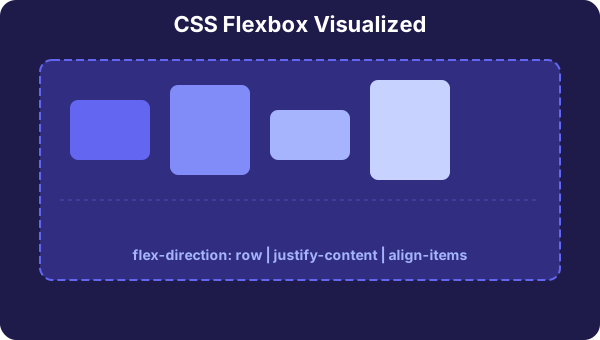
What is Flexbox?
CSS Flexbox (Flexible Box Layout) is a one-dimensional layout model that lets you distribute space among items in a container and align them — even when their size is unknown or dynamic. Before Flexbox, we relied on floats, inline-block hacks, and tables for layout. Those dark days are over.
Flexbox works along two axes: a main axis (set by flex-direction) and a cross axis (perpendicular to it). Every Flexbox property controls behavior along one of these two axes. Once you internalize this mental model, every property clicks into place.
The Mental Model: Two Axes
Imagine a horizontal line (→) and a vertical line (↓) inside your container. By default, the main axis runs left-to-right and the cross axis runs top-to-bottom. flex-direction can rotate these axes. Every other property — justify-content, align-items, etc. — just controls how items are distributed along one of these two axes.
The Two Axes
Every flexbox layout is built around these two perpendicular axes.
Container Properties
Applied to the parent: display, flex-direction, justify-content, align-items, flex-wrap, gap
Item Properties
Applied to children: flex-grow, flex-shrink, flex-basis, order, align-self
flex-direction
This is the first property you set — it defines the main axis of the container, which determines the direction flex items flow. Change it to column and suddenly justify-content controls vertical spacing and align-items controls horizontal alignment. The axes swap.
flex-direction
Controls the direction of the main axis — which way items flow inside the container.
Current Value
row
Items flow left → right (default). Main axis is horizontal.
CSS
.container {
  display: flex;
  flex-direction: row;
}
💡 Tip: When you change flex-direction to column, justify-content now controls vertical alignment and align-items controls horizontal. The axes swap!
justify-content
Controls how items are distributed along the main axis. This is the property you'll use most often. The six values give you precise control over spacing — from packing items together to distributing them evenly across the container.
The three space-* values are the most powerful: space-between pushes items to the edges, space-around adds equal margins around each item, and space-evenlycreates perfectly uniform gaps everywhere.
justify-content
Distributes items along the main axis. Think of it as horizontal alignment when flex-direction is row.
flex-start
Items packed to the start of the main axis. This is the default.
|■ ■ ■ ■ |
CSS
.container {
  display: flex;
  justify-content: flex-start;
}
🎯 Real-world use: space-between is perfect for navbars (logo left, links right). center is ideal for centering a modal or card. space-evenly works great for icon toolbars.
align-items
While justify-content handles the main axis, align-items handles the cross axis. In a row layout, this means vertical alignment. The default value is stretch, which is why flex items automatically fill the container height — a behavior that surprises many beginners.
The baseline value is particularly useful when you have items with different font sizes and want their text to line up neatly.
align-items
Aligns items along the cross axis. In a row layout, this is vertical alignment.
Current Value
stretch
Items stretch to fill the entire cross axis (default). All items become the same height in a row layout.
CSS
.container {
  display: flex;
  align-items: stretch;
  min-height: 200px;
}
🏆 Pro tip: The classic "center a div" problem? Just use display: flex; justify-content: center; align-items: center; on the parent. Done.
flex-wrap
By default, all flex items try to fit onto a single line (nowrap). This means items will shrink below their natural width if needed. Set flex-wrap: wrapand items that don't fit will flow onto the next line — essential for responsive card grids and tag lists.
flex-wrap
Controls whether items can wrap onto multiple lines or are forced into a single line.
nowrap
All items forced onto one line. Items will shrink to fit if needed, or overflow the container.
CSS
.container {
  display: flex;
  flex-wrap: nowrap;
}
.item {
  width: 100px;
}
⚡ Key insight: With nowrap, items shrink below their set width to fit. With wrap, items keep their width and flow to the next line. Try increasing item width above to see wrapping in action!
flex-grow, flex-shrink & flex-basis
These three item-level properties are the heart of Flexbox's space distribution. They answer three questions: How much should this item grow? (grow), How much should it shrink? (shrink), and What's its starting size? (basis).
The shorthand flex: 1 (which means flex: 1 1 0%) is the most common pattern — it makes items share space equally. flex: none (i.e., flex: 0 0 auto) makes an item rigid — it won't grow or shrink.
flex-grow, flex-shrink & flex-basis
The three item-level properties that control how items share space inside the container.
flex-grow
How much an item grows to fill extra space. 0 = don't grow. Higher number = more share.
flex-shrink
How much an item shrinks when there's not enough space. 0 = don't shrink.
flex-basis
The initial size before growing or shrinking. Like a starting width/height.
All items grow equally to fill the container.
Item 1
Item 2
Item 3
CSS
.container {
  display: flex;
}
.item-1 {
  flex: 1 1 0%;
}
.item-2 {
  flex: 1 1 0%;
}
.item-3 {
  flex: 1 1 0%;
}
💡 Shorthand: flex: 1 is shorthand for flex: 1 1 0% (grow=1, shrink=1, basis=0%). flex: none means flex: 0 0 auto (fixed size, no growing or shrinking).
align-self
Sometimes you want one item to break away from the group. align-selflets a single item override the container's align-items value. It takes all the same values:flex-start, flex-end, center, stretch, baseline, plus auto (inherit from container).
align-self
Override the container's align-items for a single item. Click an item to change its individual alignment.
Item 3
Set align-self for this item:
CSS
.container {
  display: flex;
  align-items: flex-start;
}
/* no align-self overrides */
order
The order property lets you rearrange items visually without touching the HTML. All items default to order: 0. Lower numbers appear first. You can use negative values to pull items before their siblings.
Important: This only changes visualorder. Screen readers and keyboard navigation still follow the HTML source order. Don't use it for meaningful content reordering.
order
Change the visual order of items without changing the HTML. Lower numbers appear first. Default is 0. Negative values are allowed.
HTML Order (source)
Visual Order (rendered)
CSS
.item-1 { order: 0; }
.item-2 { order: 0; }
.item-3 { order: 0; }
.item-4 { order: 0; }
.item-5 { order: 0; }
⚠️ Accessibility warning: orderonly changes visual order, not tab/screen-reader order. Don't use it for meaningful content reordering — assistive tech follows the HTML source order.
gap
The gap property (originally from CSS Grid, now supported in Flexbox) adds space between items only — never at the container edges. This is cleaner than using margins, which require workarounds like negative margins on the container.
You can set row-gap and column-gap independently, or use the shorthandgap for both at once.
gap (row-gap & column-gap)
Controls spacing between flex items without adding margins. Cleaner than using margin on each item.
Gap vs Margin
✅ gap: Space only between items, never at edges. Clean and predictable.
❌ margin: Adds space around all items including edges. Needs hacks like negative margins on container.
CSS
.container {
  display: flex;
  flex-wrap: wrap;
  gap: 12px;
}
Real-World Layout Patterns
Theory is great, but you came here to build real things. Here are six production-ready patterns that cover 90% of what you'll ever need with Flexbox. Each one is a pattern you'll reach for again and again — from navbars to card grids to the classic Holy Grail layout.
Real-World Layout Patterns
Six production-ready flexbox patterns you'll use every day. Click each to see it live with the CSS.
🧭 Navbar
Logo left, navigation links right. The most common flexbox pattern on the web.
CSS
.navbar {
  display: flex;
  justify-content: space-between;
  align-items: center;
  padding: 0 24px;
  height: 60px;
}
Full Playground
Now combine everything you've learned. Toggle any container property, click individual items to customize their flex-grow, flex-shrink, flex-basis, order, and align-self. The generated CSS updates live — copy it straight into your project.
Full Playground
Combine every property. Click items to customize individually.
.container {
  display: flex;
  flex-direction: row;
  justify-content: flex-start;
  align-items: stretch;
  flex-wrap: nowrap;
  gap: 8px;
}